Issues, boards and sprints
Plan the work in issues, move it across boards and sprints, and see the code, the reviews and the deployments that came out of each issue on its page.
Create an issue in seconds
Press one key on the issue list, or use the command palette from any screen of the project. Set the status, priority, assignee, due date, tags, a parent issue and a board in the same dialog, and attach files.
A draft you did not finish is kept and offered back the next time you open the dialog.
Describe it by voice or video
Instead of typing, say what happens and how to reproduce it, or record your screen while you explain the problem. AI fills in the title, the description and the fields, and you review them before you create the issue.
A screen recording stays with the issue and plays under its description.
A list you can shape
Filter by assignee, status, tag, priority, board, parent issue and dates, combine conditions, and save the filters you use often as searches with live counters. Star a saved search to keep it in the sidebar.
Group and order the list, show sub-issues under their parents, move with the keyboard, and change many issues at once: status, priority, assignee, due date and parents.
Everything about one issue
The issue page brings together the description, the properties, sub-items, linked code, spent time, deployments and the discussion. Break the work into a checklist of sub-items, and turn an item into a real issue when it grows.
Several people can edit the description at once and see the cursors of the others. Every version of the title and the description is kept, and any of them can be restored.
From the issue to production
Mention the issue key in a commit message and the commit is linked on its own. The Code changes tab lists the commits, branches and reviews of the issue, and the Deployments tab shows where the issue was shipped: environment, service, pipeline and who deployed it.
The Agent button starts a coding agent on the issue, in the cloud or on your own computer.
Your statuses and your fields
Each project has its own statuses. Rename them, add your own and set what each one means for the work: unresolved, done or dropped. A progress icon shows at a glance how far an issue has come.
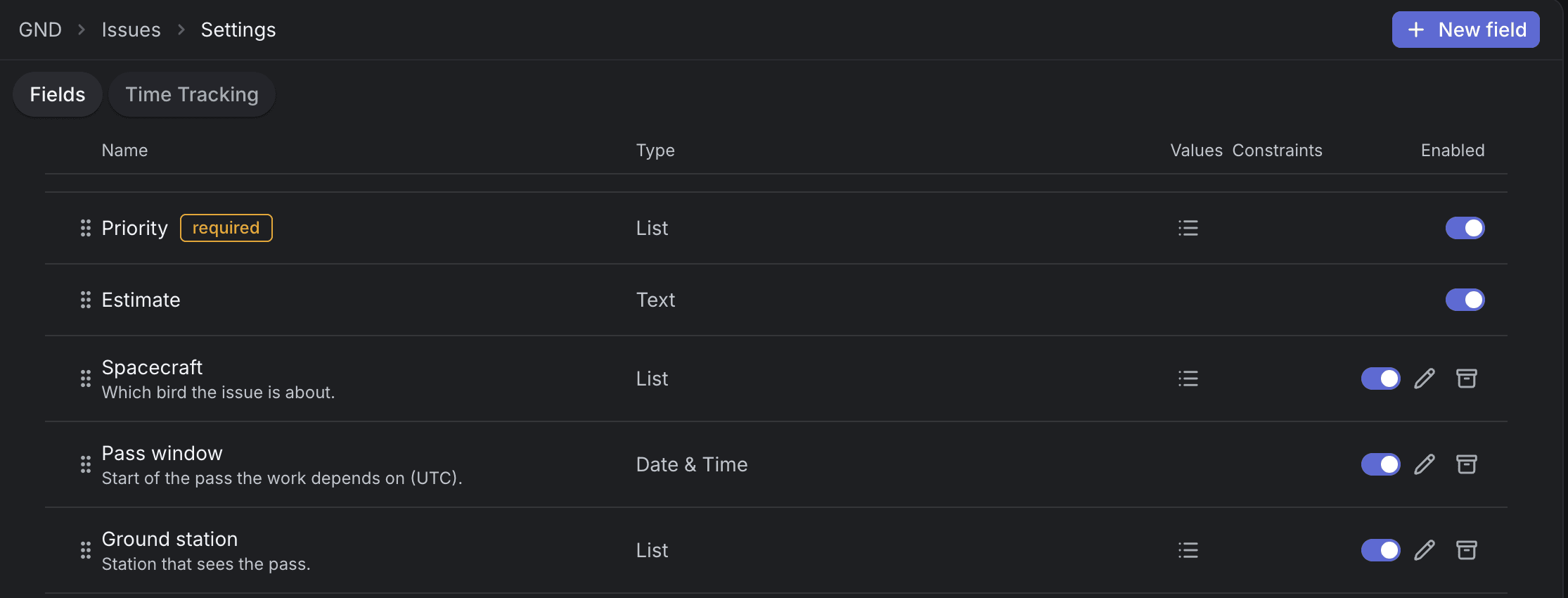
Add custom fields such as a component, a customer or a release date: text, number, date, person, link and more, with defaults, required values and constraints.
Boards
A board shows issues as columns of statuses, and a project can have several. Drag a card to change its status, group cards into swimlanes by assignee, priority, due date or a custom field, and set card limits on columns.
The board updates live as teammates move cards. Fill it by hand or by a search query, and keep the done column short by hiding cards resolved long ago.
Sprints, backlog and reports
Split the work on a board into sprints with a goal, plan the next ones from the backlog, and carry unfinished issues over when a sprint ends.
The sprint report shows how a sprint went, and velocity shows how much the team finishes sprint after sprint.
Time tracking
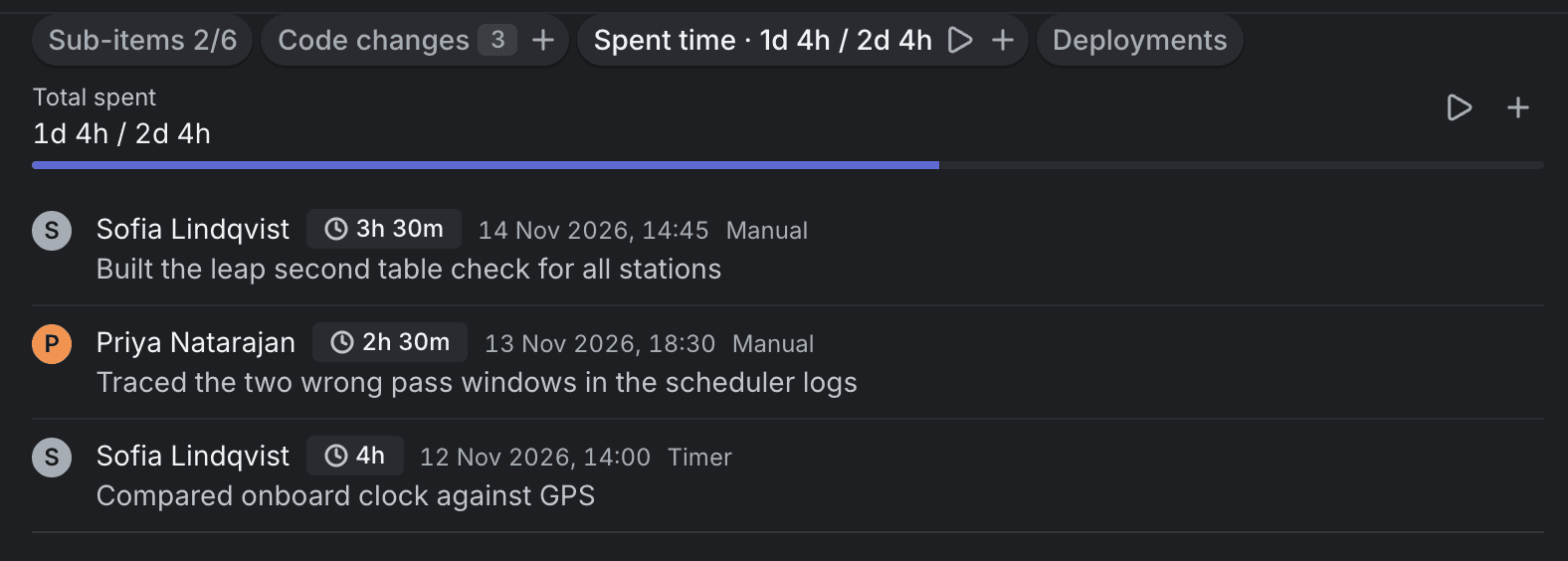
Start a timer on an issue or log time by hand, and compare it with the estimate: the issue shows what is spent, what remains and how far the work is over.
The time report covers the issues of the current filter and downloads as CSV or Excel, with a sheet of time per person per day for timesheets.
Questions about issues
- Is there a limit on issues or boards?
- No. Issues, boards, documents, chat, history and search are unlimited on every plan.
- Can we bring issues from another tracker?
- Yes. An administrator can import issues, and when the source also hosts Git repositories, copy the code in the same pass. Imported issues keep a link to the original.
- Can we get issues out?
- Yes. Export every issue of a project, or only the issues the list shows now with its filters, as CSV or Excel.
- What happens to a deleted issue?
- An issue deleted from its page moves to the trash with its sub-issues and can be restored. Deleting many issues at once from the list is final.